Postingan

Menampilkan postingan dengan label CAD holic

What’s new in AutoCAD: drawing and drafting tools

Gambar
What’s new in AutoCAD: drawing and drafting tools by Edwin Prakoso     In the previous article, we saw that there are some major changes in AutoCAD interface . In this roundup post, we will see some new AutoCAD key features for drawing and drafting tools . There are so many nice minor enhancements, that I will not cover, and there are some of them can be considered as major enhancements. Some of the features below might be not big changes, but can change the way you work. Many new drafting features were added in AutoCAD 2011. Let’s see them. Drawing Tools Enhancements The most significant enhancements in creating AutoCAD drawing is probably creating drawings from 3D. Not many other enhancements for drawing and drafting. Well, what can we expect for a drafting tool? Create 2D drawings, section and detail views Autodesk added the ability to create 2D drawing in AutoCAD 2012. And enhanced it further in 2013. Things that AutoCAD ...

What’s new in AutoCAD 2013: Create section and detail views

Gambar
What’s new in AutoCAD 2013: Create section and detail views by Edwin Prakoso   Do you remember in AutoCAD 2012, Autodesk add functionality to create 2D drawings from 3D models in AutoCAD . In 2013, Autodesk decide to enhance this functionality further. In AutoCAD 2013, now you can create not only base and projected view, but you can also create section and detail views. If you have 3D model in model space, you can create base view by accessing the tool from layout tab. Yes, Autodesk moved these tools to layout tab. They were in annotation tab before. Remember, you need to place the views in layout. You may activate base view tool in model space, but it will place views in layout anyway. Base and projected view are already included in 2012. If you see in create view panel, you can also see section and detail view tools here. There are several options to create section, from predefined to creating your own using object (polyline). You can create ci...

Reporting Multiple Coordinates in A Block using Attribute Extraction

Gambar
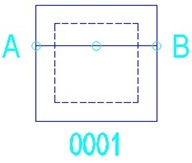
Reporting Multiple Coordinates in A Block using Attribute Extraction by Edwin Prakoso     I found this thread this morning in CADTutor Forum . I found it’s interesting and trying to figure how it can work. This is how I do it. The problem is, Manish wants to extract coordinates from 3 points inside a block, using AutoCAD data extraction . If we want to report one point, it would be easy. Just extract the insertion point. This is how his block looks like. Modifying the Block If you want to try this, you can download the original file from the forum. The 3 small circles are the set points we need to extract the coordinates. Open the file, and open the block in block editor. Similar to what we did in labeling coordinates , add attributes that show the coordinates of each point. Refer to the tutorial to create them. Yes, you need to create 3 attribute definitions. Tips: You can set the attribute to invisible, because we only need it in data extraction...

Why I can’t Use Formula in xls Created by Data Extraction?

Gambar
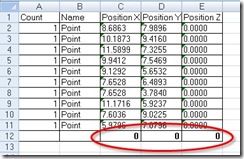
Why I can’t Use Formula in xls Created by Data Extraction? July 16, 2009 by Edwin Prakoso     Have you used AutoCAD  data extraction ? This is a very handy tool to create a report about any data from your AutoCAD drawing . Some of my colleague choose to extract the drawings information to excel instead of directly to his drawing. They want to modify the values further, and using excel is easier (and faster). But here comes the problem: when he tried to sum any column, he can’t get excel to calculate the values . What’s wrong? Apparently, AutoCAD export all the data to text strings, not numbers. That’s why you can’t get them calculated. To fix this is easy: Select all the cells contain your data in excel, click copy on the ribbon (or press [ctrl] + C) to copy them to clipboard. Open notepad, paste them here. Select all (you can press [ctrl] + A) then copy this value to clipboard. Paste them back in excel. Now your formula should works ;)

Create a Report Table with Data Extraction

Gambar
Create a Report Table with Data Extraction by Edwin Prakoso     Have you use AutoCAD data extraction? You can extract any properties from any objects in your AutoCAD drawings with data extraction . I believe some of you have seen a nice demo from Autodesk about this. They use a data set to create door schedule from a drawing. It count the number of door blocks, and report it on a table. If you haven’t seen it, you can try creating schedule by yourself here . Data extraction actually can extract any data, not only from blocks. Lines, points, rectangle… any data! You might want to have a hole table, benchmark coordinates, or estimate pipe length from your drawing. Sure, AutoCAD might not the perfect solution, but if that what you have, data extraction might help you. In this example I will try to extract data from lines. I draw several lines as shown below. Of course, you might want to use real data, better than mine :) I created them in three lay...

Creating Different Drawing Representation

Gambar
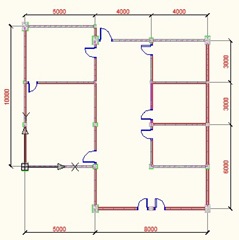
Creating Different Drawing Representation by Edwin Prakoso     We have completed our AutoCAD drawing by  creating floor plan . We set several layers when we created wall and column . Why? We are going to create different drawing representative for relatively large and small scale. How? We are going to create two layer states. Open your drawing, or download this DWG file . The drawing look like this. This is going to be how it look with all the details. Let’s just save this layer states. Click from your AutoCAD ribbon, home>layers>unsaved layer state>New Layer State. Give it name ‘high details’ and give the description something like given below. That’s it! You’ve just save a layer state! Now we are going to define another layer state. Open your layer manager. Freeze these layers: A-Column-Structure, A-Wall-Pattern, and A-Wall-Structure. Now change the lineweight and color for these layers: A-Column: 0.15, blue A-Door:...

Using Lookup Table in Dynamic Block

Gambar
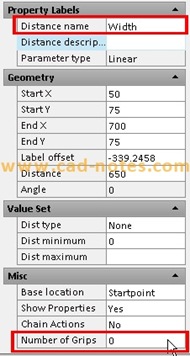
Using Lookup Table in Dynamic Block by Edwin Prakoso     We created a door using stretch action in dynamic block tutorial . It was a good practice, but can be better. Stretching them might not be the best option. Sometimes we want the door at specific sizes. Providing the users a list would be better. We can use lookup table. Let’s open the door in that tutorial. Rename the linear parameter to ‘width’ or ‘door width’. And change the ‘number of grips’ to 0. We don’t want our users to use other than specified sizes. Place a lookup parameter. Place it anywhere you like it. When AutoCAD ask for the number of grips, type 1 then [enter]. It suppose to be the default value by the way. After you place the lookup action, change the parameter name to ‘door type’. Then place the lookup action. AutoCAD will open a lookup table. We are going to define the door sizes here. Click the ‘add properties’ button. We only have one parameter here. Select the...

How to: Keep Attributes at Dynamic Block Center

Gambar
How to: Keep Attributes at Dynamic Block Center by Edwin Prakoso     Do you like using AutoCAD dynamic block ? If you use stretch action, some element may not be on expected place. For example, block attributes will not stay at center. In this AutoCAD tip, we created some drawing elements and add an attribute at the block center. We want to change the block size by stretching it. The challenge is to keep the attribute at the block center. There are two ways we can do to achieve it: Keep the it at it’s position and stretch the block both ways Stretch the block to one direction and at the same time move the attribute to keep it at the center. Let’s try this. I use a simple dynamic block for this tip: a room number tag. Creating the attribute Creating it is just the same, we use ATTDEF. To make this easier, set the justification to center. One more thing: make sure lock position is active. Some action will not work if you set the position to not l...

Troubleshoot: Block Attributes Won’t stretched

Gambar
Troubleshoot: Block Attributes Won’t stretched by Edwin Prakoso   I have someone asking me why his dynamic block is not working as he expected. He created his own coordinate label based on this tutorial on CAD Notes . Only the northing coordinate label move, and it move strangely unpredictable. As you probably have the same problem, I decided to publish it here. First I suspected that this has something to do with defining objects for the stretch action. However, I don’t find anything wrong about the settings. So I go further and check the attributes. In BATTMAN, I can see the tags are marked in red. The tag names are the same! Tag name has to be specific. AutoCAD doesn’t allow us to have more than one tag with same name. So I changed the tag name to COORDN and COORDE. The red mark disappear, and the dynamic block works as expected.

Enable Object Snap to Hatch

Gambar
Enable Object Snap to Hatch by Edwin Prakoso     I have a several colleagues asking me, why they can’t snap to hatch object, just like when they use their old AutoCAD. Actually, you still can. It seems that Autodesk has disabled this feature by default, may be because performance issue. To activate it, simply open option. You can do it by typing OP then [enter] or by accessing through AutoCAD ribbon . In option dialog box, drafting tab, in object snap options, turn off ignore hatch objects . You can also set this option by changing OSOPTIONS system variable. I snip this from help file: 0: Object snaps operate on hatch objects, and on geometry with negative Z values when using a dynamic UCS 1: Object snaps ignore hatch objects 2: Object snaps ignore geometry with negative Z values during use of a dynamic UCS

Dynamic Block Action vs Dynamic Block Parameters

Gambar
Dynamic Block Action vs Dynamic Block Parameters by Edwin Prakoso     We have created an AutoCAD column block by using two methods: using dynamic block actions and using parametric features (geometric and dimensional constraint) . So what’s the difference? Why we should use parametric instead of dynamic block actions? It looks like using action is easier than using parametric design. Dynamic block actions are basically AutoCAD tools that we used in conventional AutoCAD drawing. We stretch, scale, move, or mirror our objects. Parametric is maintaining the objects geometry (using geometric constraint) and control the object sizes (using dimensional constraint). They are different in many ways. For simple objects like rectangular column, dynamic block actions maybe easier. But when you need to maintain complex objects relationships then you may want to consider parametric features. Let’s take this profile as an example. It’s almost impossible to co...